How to Make a Transparent Background Video for Music and Edits
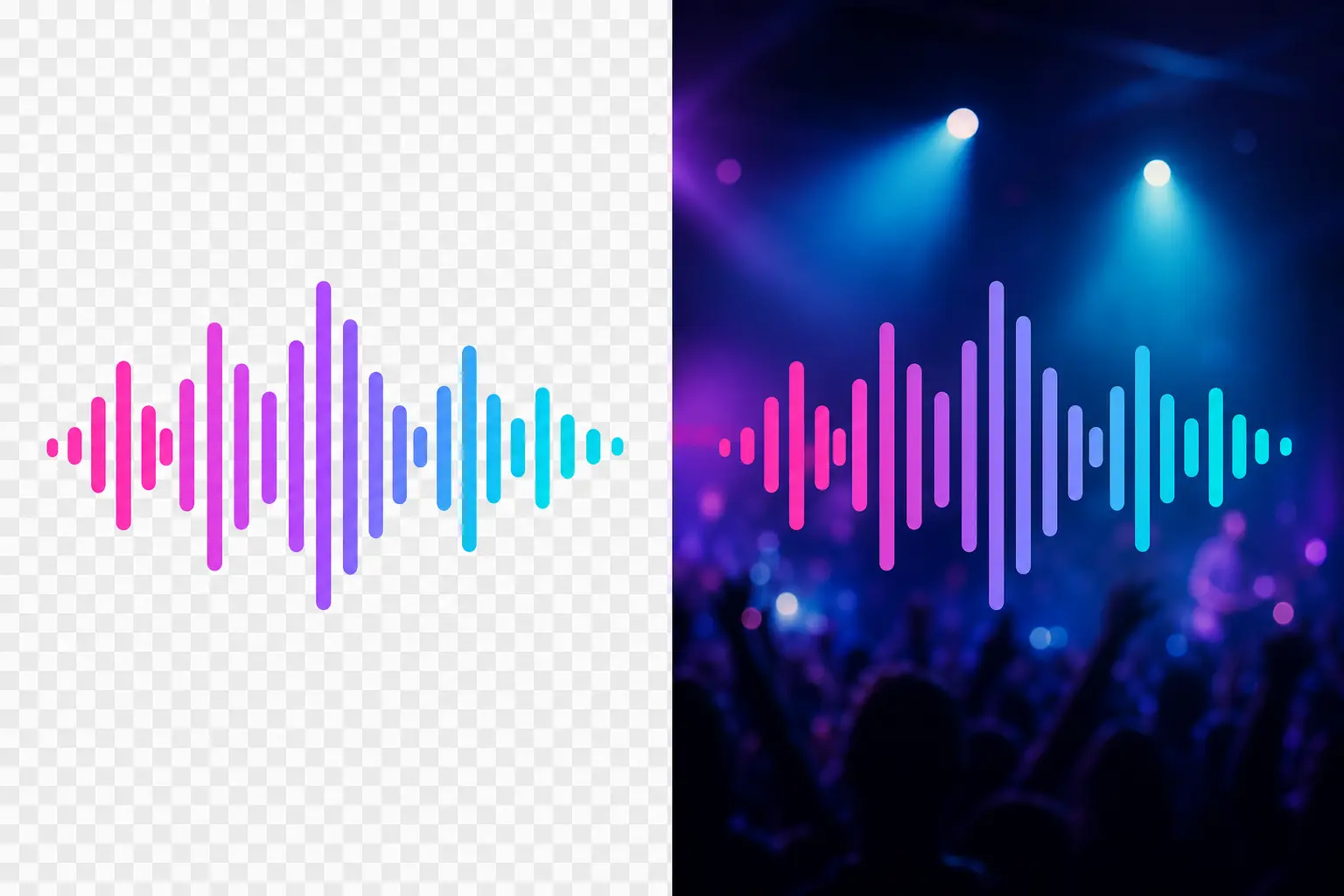
You made a sound wave video. Now you want to place it on top of another video: a music clip, a podcast teaser, a lyric video, a YouTube intro, or a clean social post.
That is where a transparent background video helps.
Instead of exporting a rectangle with a solid black, white, or colored background, a transparent video keeps only the visible element. The rest stays see-through, so you can layer it over other footage in apps like Premiere Pro, Final Cut Pro, DaVinci Resolve, CapCut, or After Effects.
For music creators, podcasters, and video makers, this is especially useful for animated waveforms. With a video generator like WaveVisual, you can design a highly customized sound wave once, export it with transparency, and reuse it across different edits without rebuilding the whole visual every time.
What is a transparent background video?
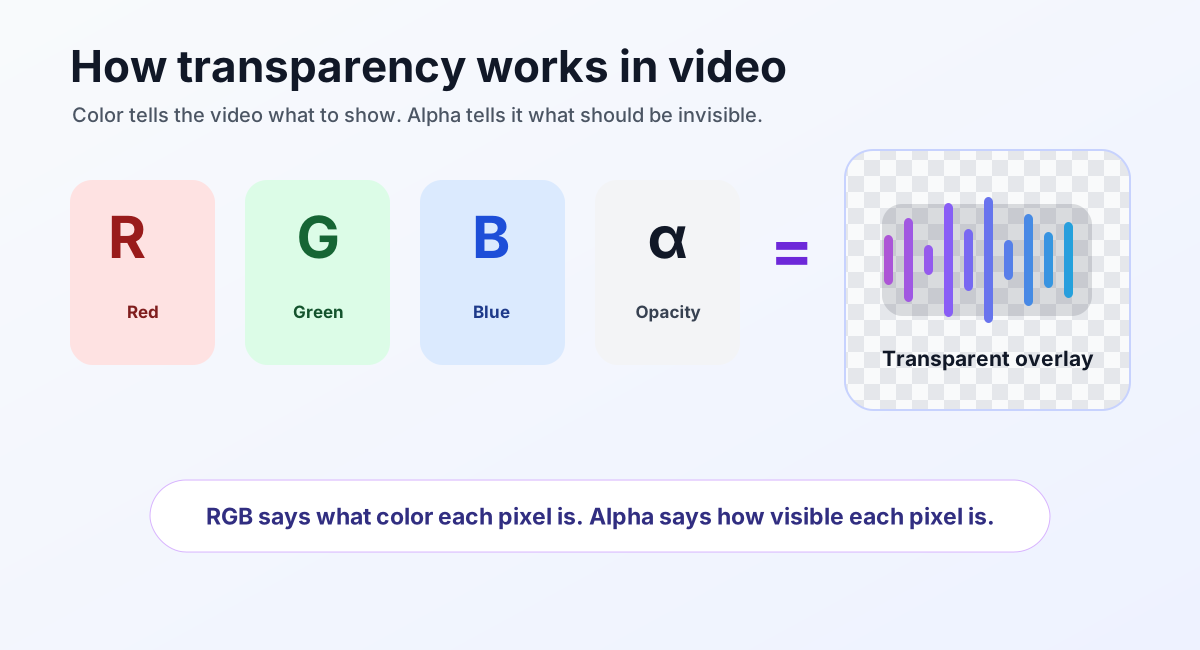
A transparent background video is a video file with an alpha channel.
Most video files store color information: red, green, and blue. An alpha channel adds one more layer of information: opacity. It tells your editing app which parts of the video should be visible, semi-transparent, or completely invisible. If you want a deeper technical reference, Pixel Bakery's format guide has a useful list of image and video formats that support alpha channels.
Think of it like a transparent PNG, but in motion. A PNG image can have a cut-out background. A transparent video can do the same thing frame by frame.
This is why transparent videos are often called:
- Videos with alpha
- Alpha channel videos
- Transparent MOV files
- Transparent overlays
- Video overlays with transparent backgrounds
They all point to the same basic idea: a video that can sit on top of another visual without a box around it.
Why creators use transparent videos
Transparent videos are useful whenever you want to separate a moving visual element from its background.
For music and audio content, common uses include:
- Animated sound waves over a music video
- Podcast audiograms over a branded background
- Visualizer overlays for YouTube, Instagram, TikTok, or Reels
- Lower thirds with names, titles, or episode details
- Logo animations over intros and outros
- Lyric video effects layered on top of footage
- Release promos where the same waveform appears across multiple edits
The big advantage is flexibility. Once your sound wave is exported with transparency, you can place it over a concert clip, album artwork, a cover image, a blurred background, or a full video edit.
You do not have to decide on the final background inside the visualizer tool. You can make that decision later in your editing app.
Why MP4 usually is not enough
This is the part that trips people up: a regular MP4 usually does not support transparency.
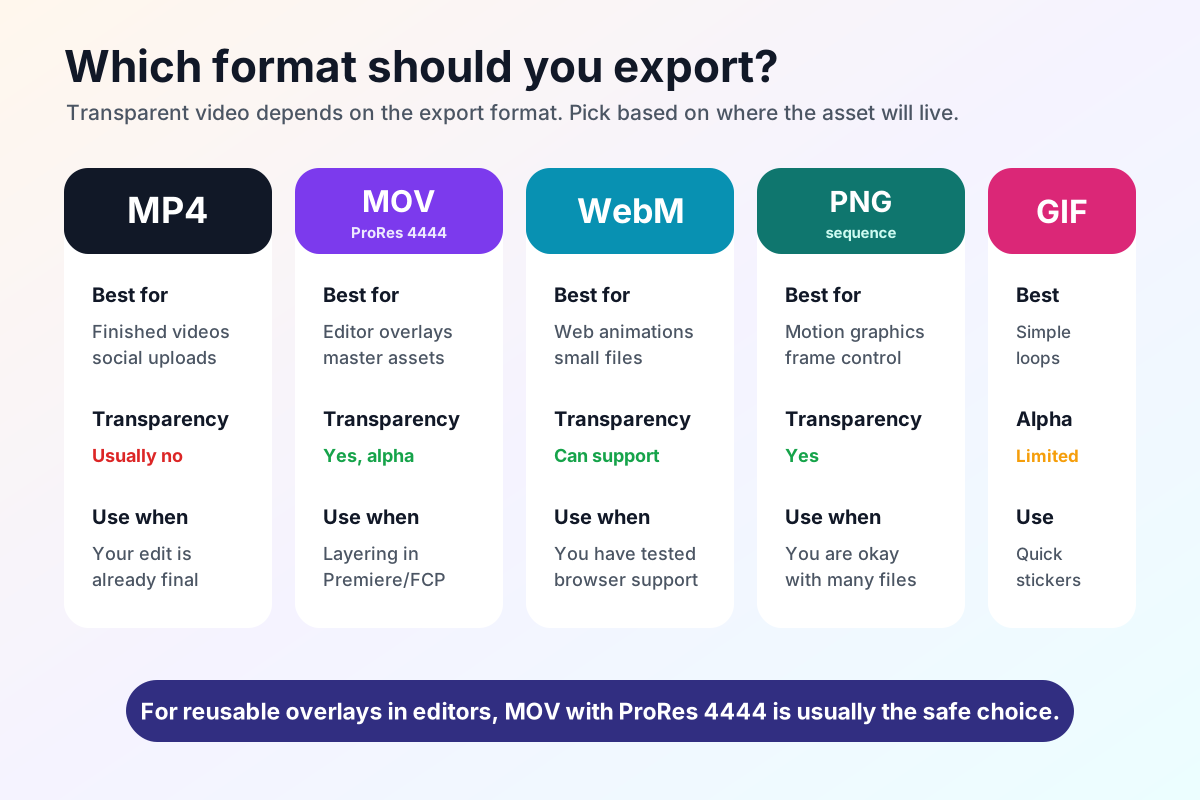
MP4 is great for finished videos. It is small, easy to share, and supported almost everywhere. But the common MP4 codecs people use, like H.264, are designed for normal opaque video. The MDN video codec guide is a helpful reference if you want to compare codec support across browsers and devices.
If you export a transparent design as a standard MP4, your transparent area will usually become black, white, or whatever background color was used during export.
That does not mean MP4 is bad. It just means MP4 is usually the final delivery format, not the best format for a reusable transparent overlay.
If you want to place a moving sound wave on top of another video, use a format that actually carries transparency.
Best formats for transparent background video
The best format depends on where you want to use the video.
MOV (transparent)
MOV with a transparent background is the format most creators should use for CapCut and other editing workflows.
WaveVisual offers two transparent MOV exports. MOV (CapCut) uses QuickTime Animation (qtrle), which CapCut composites correctly. MOV (ProRes) uses ProRes 4444, the standard for Final Cut Pro, Adobe Premiere Pro, DaVinci Resolve, and After Effects, and it also plays in QuickTime Player. Both keep an alpha channel.
The tradeoff is file size. Transparent MOV files can be much larger than MP4 files. That is normal. You are creating an editing master, not a tiny social upload.
Use MOV when:
- You want to reuse the video in an editor
- You care about quality
- You are making music videos, podcast clips, social edits, or client work
- You need a clean transparent overlay
WaveVisual supports transparent MOV export for animated sound wave videos, so you can create a waveform overlay and bring it into your editing app as a reusable layer.
WebM
WebM can support transparency, especially with VP8 or VP9 video. It is often used for transparent video on websites because file sizes can be smaller than MOV.
The catch is compatibility. WebM support varies by browser, device, and editing app. Chrome has supported alpha transparency in WebM video, but that does not mean every browser, mobile device, or editing app will behave the same way. WebM can be a strong choice for web animations, but it is not always the safest format for professional video editing.
Use WebM when:
- You are building for the web
- You want a lightweight transparent animation
- You have tested the browser or app where it will be used
PNG sequences
A PNG sequence exports every frame of the video as a separate transparent PNG image.
This gives excellent quality and transparency, but it creates many files. It is common in motion graphics and VFX workflows, but less convenient for everyday creators.
Use PNG sequences when:
- You are working in a professional motion graphics pipeline
- Your editor or compositor handles image sequences well
- You need frame-by-frame control
GIF
GIF supports basic transparency, but it is limited. It does not handle smooth semi-transparent edges well, and image quality can suffer quickly.
GIFs can still be useful for simple stickers or lightweight animations, but they are usually not the best choice for polished waveform videos.
Use GIF when:
- The animation is simple
- Quality is not critical
- You need a quick preview or lightweight decorative asset
How other tools compare to WaveVisual
There is no single "best" tool for every workflow. What matters is whether you need a finished social clip, a transparent overlay you can reuse inside an editor, or a customizable waveform video generator that gives you control before you move into your main edit.
The table below stays high level on purpose. Features change, and export settings can vary by template, plan, and browser. Always double-check the export options in the tool you pick.
| Tool / category | What it is great at | Transparency and export reality (typical) | Where WaveVisual is different |
|---|---|---|---|
| WaveVisual | Generating customizable waveform videos for music, podcasts, reels, visualizers, and editor overlays | You can export animated sound waves as transparent MOV (QuickTime Animation + alpha) for reuse in editing apps | WaveVisual is built as a creator-friendly sound wave video generator: customize the waveform, layout, colors, animation feel, and export format, then bring the result into Premiere, Final Cut, Resolve, CapCut, or another editor |
| Kapwing Music Visualizer | A browser-based video studio for music visuals, captions, clip workflows, and social sizing | Kapwing's marketing pages emphasize exporting sharable videos from the studio, including GIF export in their how-to copy, rather than "transparent MOV for NLE overlays" as the headline feature | WaveVisual is more focused: instead of a general editing suite, it is purpose-built for creating polished waveform videos and reusable transparent overlays |
| EchoWave Audio Waveform Video Generator | Fast template-style audio-to-waveform videos for social, often paired with cover artwork | EchoWave's workflow centers a template + render + download flow; check whether your export includes transparency if that is your goal | WaveVisual puts more emphasis on custom waveform design, visual control, and editor-friendly exports for creators who want the waveform as a production asset |
| Audio Visualizer | Browser-local, lightweight waveform rendering | The site advertises WebM with VP9 and calls out transparent backgrounds for overlay-style workflows when the browser supports it | WebM can be useful for the web; WaveVisual’s MOV path is aimed more at professional editing apps, timeline overlays, and reusable creator assets |
| Masko transparent background video | API and product workflows around transparent animation delivery | Masko documents multiple transparent-friendly outputs (for example WebM/HEVC-style workflows on their pages) | WaveVisual is creator-facing: you make a waveform video visually in the editor, then export a transparent overlay without building an integration pipeline |
A simple decision rule:
- If you want a ready-to-post video with backgrounds, text, and platform sizing handled for you, a studio tool like Kapwing can be a strong fit.
- If you want a transparent overlay you can reliably drop into a timeline, prioritize a workflow that exports real alpha in an editing-friendly container (often MOV with the right codec settings).
- If you want a custom waveform video generator that gives you control over the look before you move into a full editor, WaveVisual is built for that workflow.
How to make a transparent sound wave video in WaveVisual
WaveVisual is a waveform video generator for creators who want more control than a preset visualizer. You can turn audio into an animated sound wave, customize the look, and export a video asset that fits into the rest of your editing workflow.
For transparent background workflows, the important export format is MOV. That makes WaveVisual useful not just for making a final video, but for creating overlay-style assets you can layer inside other professional apps.
Here is the basic process:
- Open the WaveVisual editor.
- Upload your audio file.
- Customize the sound wave style, color, size, and animation.
- Keep the background transparent or design the waveform as an overlay.
- Go to the download/export options.
- Choose
MOV (CapCut)orMOV (ProRes)for a transparent background video. - Export and download the file.
You can then import that MOV file into your editing app and place it above your main video layer.
This is useful if you want to:
- Add an animated waveform to a music video
- Reuse the same sound wave across several social clips
- Put a podcast audiogram over branded artwork
- Create a clean overlay for CapCut, Premiere Pro, Final Cut Pro, or DaVinci Resolve
- Keep your editing workflow flexible
WaveVisual is also actively evolving around video workflows. Popular features for video editors are added every week, so the editor keeps getting better for creators who want transparent overlays, waveform videos, and reusable assets for larger edits.
How to use a transparent video in editing apps
The workflow is usually simple:
- Import your transparent
MOVfile. - Drag it onto a video track above your main footage.
- Resize and position it where you want.
- Add color correction, shadows, glow, or effects if needed.
- Export your final edit as MP4 for sharing.
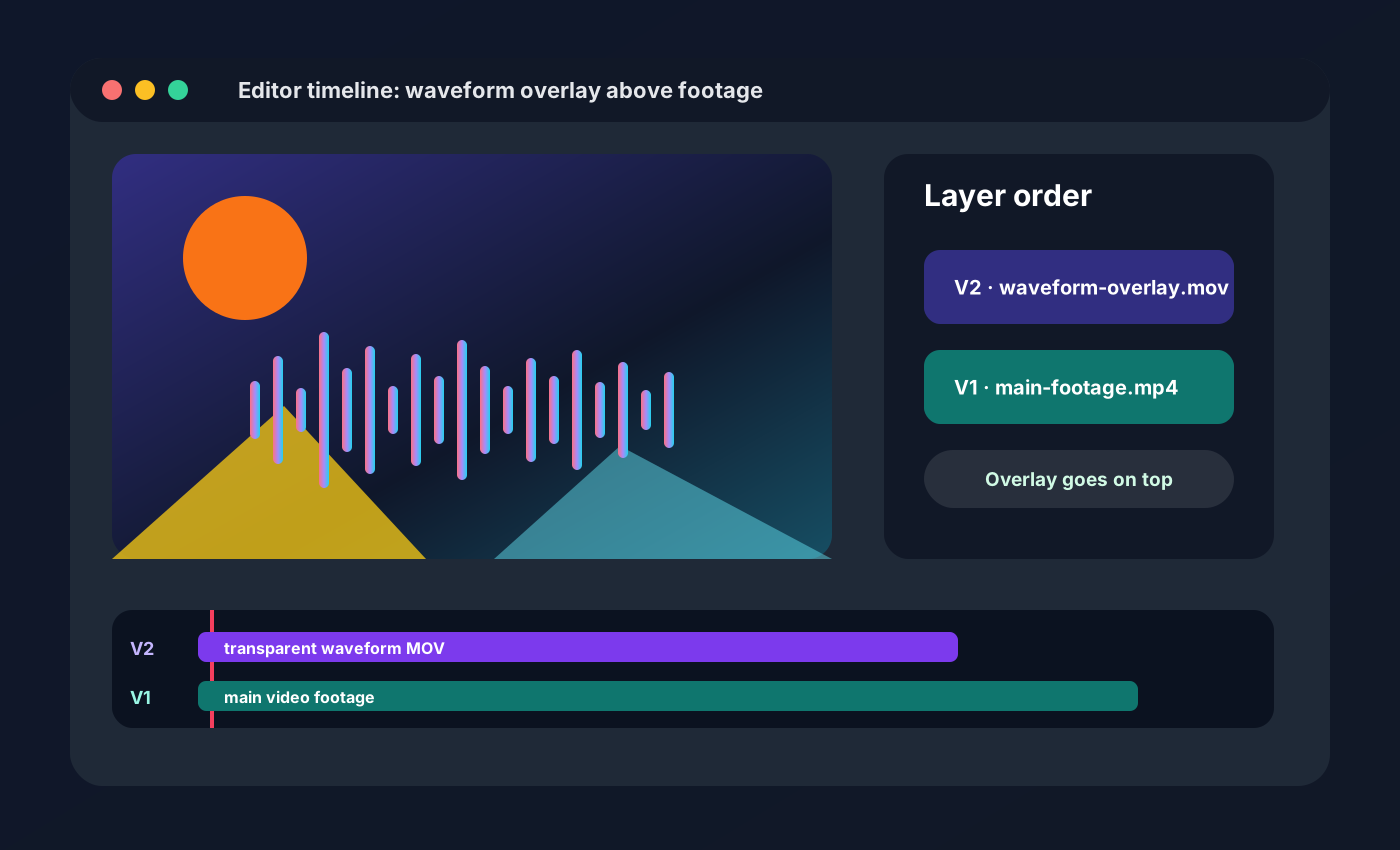
The key detail is layer order. Your transparent waveform should sit above the background footage, just like a sticker, title, or logo overlay.
If your background appears black after importing, the file may not actually include transparency, or your app may not be interpreting the alpha channel correctly. Check that you exported a format with alpha support. In CapCut, use WaveVisual’s MOV (transparent) export — CapCut often fails to composite WebM alpha even when the file is valid.
Common transparent video problems
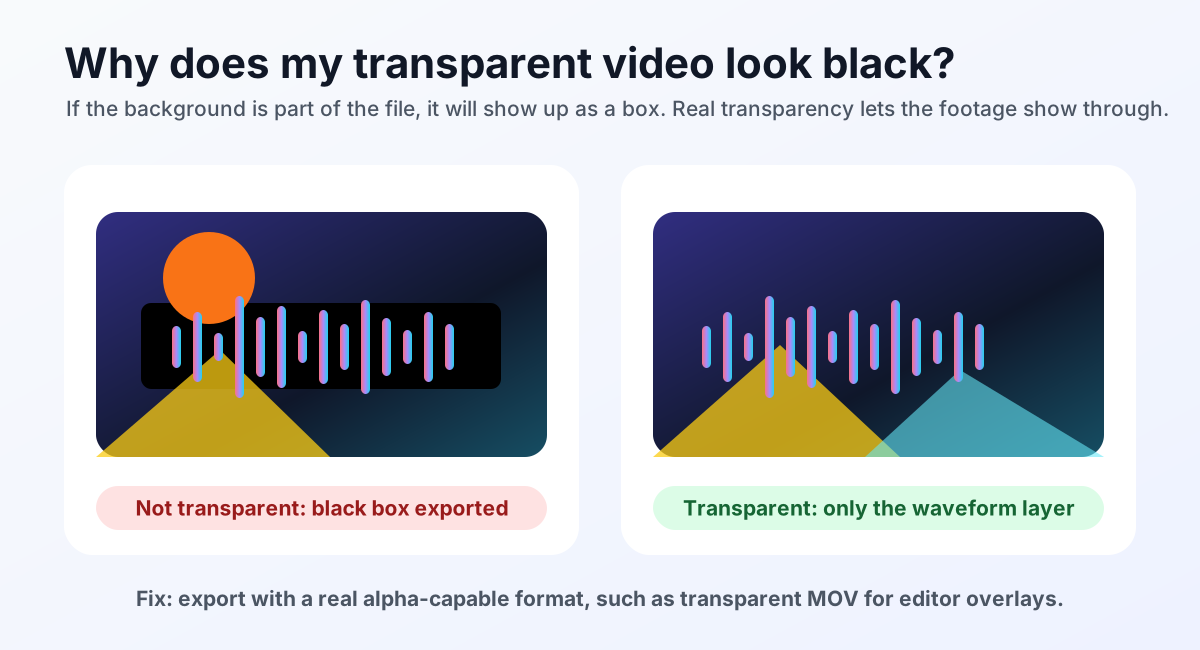
The background turns black
This usually means the transparency was lost or your player is showing transparent pixels as black. Try importing the video into an editor instead of previewing it in a basic media player.
If it is still black in the editor, check the export format. A standard MP4 is usually the culprit.
The file is much larger than expected
Transparent MOV files are meant for editing. They carry more image data than a normal MP4, so large file sizes are expected.
Use the MOV while editing, then export your final finished video as MP4 for social media or YouTube.
The video has a white box around it
That means the video probably does not have an alpha channel. The white area is part of the image, not transparency.
Re-export using a transparent format, and make sure the design itself does not include a white background layer.
The app does not support the file
Most professional editors support transparent MOV, but support can vary across mobile apps and older versions. If one app has trouble, try WaveVisual’s WebM alpha export or another editor that preserves alpha.
The edges look rough
Rough edges often come from formats with limited transparency, especially GIF. For smooth waveform lines, glow, shadows, or semi-transparent effects, use MOV with alpha instead.
Tools and resources
There are many tools that can help you create videos, visualizers, or transparent assets. A few worth exploring:
- WaveVisual for customizable waveform videos and transparent MOV overlay exports
- Kapwing Music Visualizer for online music visualizer creation
- EchoWave waveform video generator for quick waveform videos
- Audio Visualizer for browser-based audio visualizer experiments
- Masko transparent background video tool for transparent video workflows
Frequently Asked Questions
Q: Can an MP4 have a transparent background?
A: In most everyday workflows, no. Standard MP4 exports usually do not preserve transparency. If you need a transparent video overlay, use a format with alpha support, such as transparent MOV or WebM with alpha.
Q: What is the best format for transparent background video?
A: For CapCut and other editing apps, transparent MOV is usually the best choice. For websites, WebM can be useful, but you should test browser support.
Q: Why is my transparent video showing a black background?
A: Some media players show transparent pixels as black. Try importing the file into a video editor. If it is still black there, the file may not have been exported with an alpha channel.
Q: Can I use a transparent video in CapCut?
A: CapCut can work with overlay-style videos, but format support can vary by device and app version. A transparent MOV is a good starting point for professional workflows, but always test your final app before committing to a long export.
Q: Can I export a transparent sound wave video from WaveVisual?
A: Yes. WaveVisual supports transparent MOV export for animated sound wave videos, so you can reuse your waveform as an overlay in other editing apps. It is designed as a customizable waveform video generator, not just a static sound wave maker.
Q: Should I upload a transparent MOV directly to Instagram or TikTok?
A: Usually, no. Use the transparent MOV inside your editor, place it over your final background, then export the finished video as MP4 for social platforms.
Make your sound wave reusable
A transparent background video gives your audio visual more range.
You can generate one animated sound wave, customize it until it matches your project, export it as a transparent MOV, and use it wherever your edit needs it: over a music video, behind album artwork, inside a podcast clip, or across a whole release campaign.
Start with your audio, create the waveform video in WaveVisual, export it as MOV, and bring it into the editing app you already use.
More from WaveVisual: the sound wave generator, music visualizer, and pricing.